
How to Create a Strong Password and Keep Your Account Secure
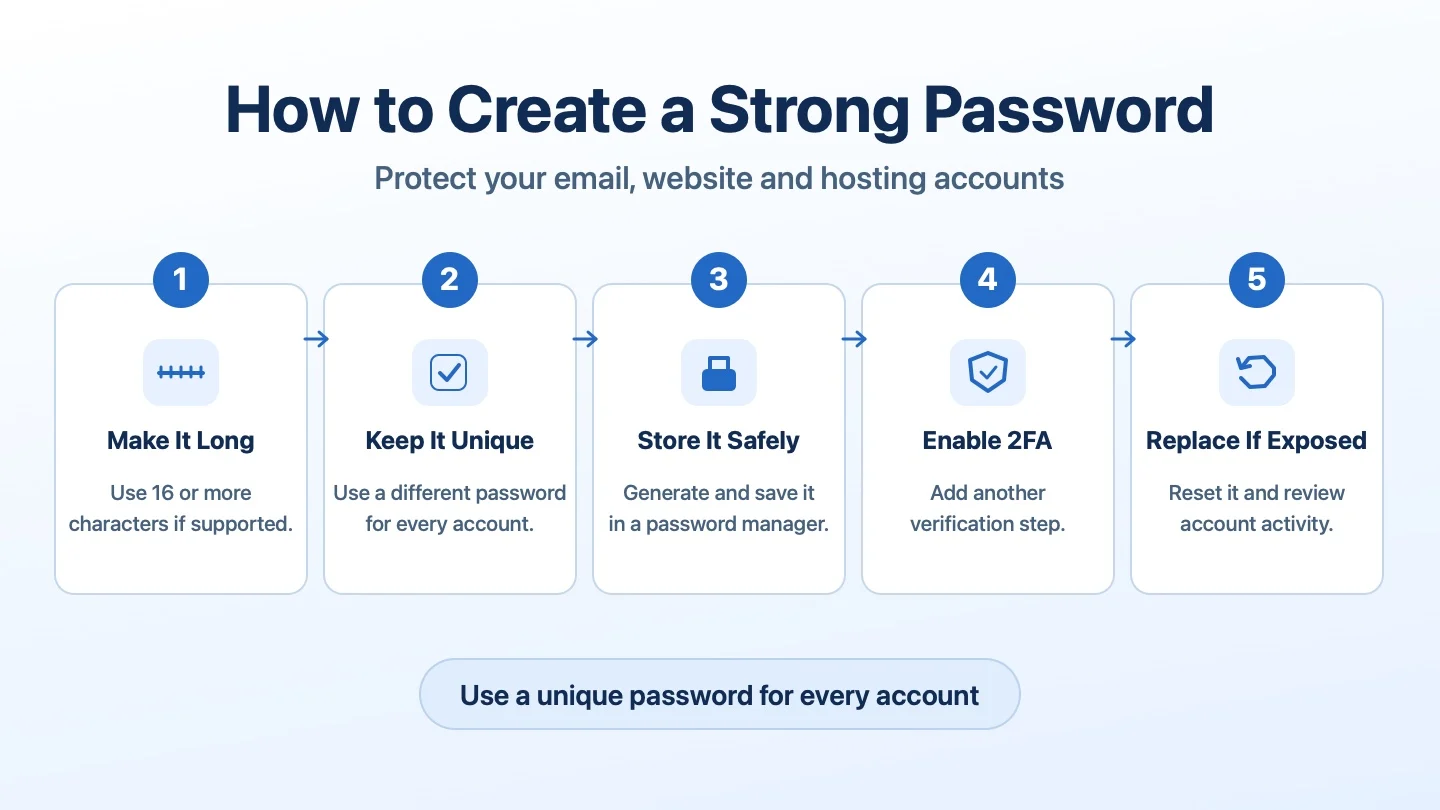
A strong password helps protect your business email, WordPress website, hosting control panel and iCoreHosting client account. This guide explains how to create unique passwords, store them securely and add extra protection with two factor authentication.
Before You Begin
You will need:
- Access to the account you want to protect.
- A trusted password manager, if available.
- Access to your chosen two factor authentication method, if supported by the service.
Step 1: Create a Long, Unique Password
Choose a password with at least 16 characters where the service supports it. A long, randomly generated password is preferable to a short password with predictable substitutions.
Uppercase letters, lowercase letters, numbers and symbols may be used, but the most important properties are length, unpredictability and uniqueness.
If you need to type the password often, use several randomly chosen, unrelated words to form a long passphrase. Generate your own passphrase and keep it private.
Step 2: Avoid Predictable Information
Do not build a password from your name, company name, birthday, phone number, domain name or familiar sequences such as 123456 and password123.
Attackers may try common passwords and information that is publicly associated with you or your business.
Step 3: Use a Different Password for Every Account
Use separate passwords for your business email, WordPress administrator account, hosting control panel and iCoreHosting client area.
A leaked password can give someone access to every account that uses it. Never reuse your email password for WordPress or hosting administration.
Step 4: Generate and Store Passwords with a Password Manager
A reputable password manager can create random passwords and store them securely so you do not need to memorize each one.
- Open your trusted password manager.
- Choose the option to generate a new password.
- Select a long random password, ideally 16 characters or more.
- Save it under the correct website or account.
- Protect the password manager with a strong master password and MFA when available.
Do not store passwords in publicly accessible documents or send them through chat messages.
Step 5: Enable Two Factor Authentication (2FA)
Two factor authentication adds another verification step after your password. Depending on the service, this may include an authenticator app, a security key, an email code or an SMS code. Some services also support signing in with a passkey.
- Sign in to the service using its official website.
- Open the account security or login security settings.
- Find the available 2FA or MFA options.
- Choose the strongest supported method that you can reliably use.
- Complete the setup and store any recovery codes securely.
Phishing resistant passkeys and security keys generally offer stronger protection than email or SMS verification codes. The exact options depend on the service.
Step 6: Never Share Passwords or Verification Codes
Do not share your password, recovery codes or one time verification codes by email, WhatsApp, Telegram or other messaging services.
If another person needs access, use a separate authorized user account or a secure access sharing feature when available. Always verify unexpected login requests before approving them.
Step 7: Respond to a Suspected Password Compromise
Change a password promptly if it has been exposed, accidentally shared or used on a compromised service. You do not need to change a strong password on a fixed schedule without a security reason.
- Open the service through its official website, not a suspicious message link.
- Change the affected password to a new, unique one.
- Sign out other sessions where that option is available.
- Review account activity and recovery details.
- Enable or review MFA.
- Contact support if you notice unauthorized activity.
Quick Security Checklist
- Use a long password, preferably at least 16 characters.
- Make every account password unique.
- Avoid names, birthdays and common patterns.
- Use a reputable password manager.
- Enable MFA wherever available.
- Never share passwords or verification codes.
- Replace exposed passwords immediately.
Security Recommendations for Business Accounts
Pay particular attention to business email, domain management, hosting control panels and WordPress administrator access. These accounts can affect your website, communications and business operations.
Limit administrator access to authorized users and review who can sign in periodically.
Need Assistance?
If you suspect that your iCoreHosting account, business email or hosting service has been compromised, contact support@icore.com.my for technical support.
If you received a suspicious message, read our guide to spotting phishing links. For password guidance, see the NIST Digital Identity Guidelines.
Last Verified: 18 November 2026