
How to Submit the Payment Form and Why It Is Required
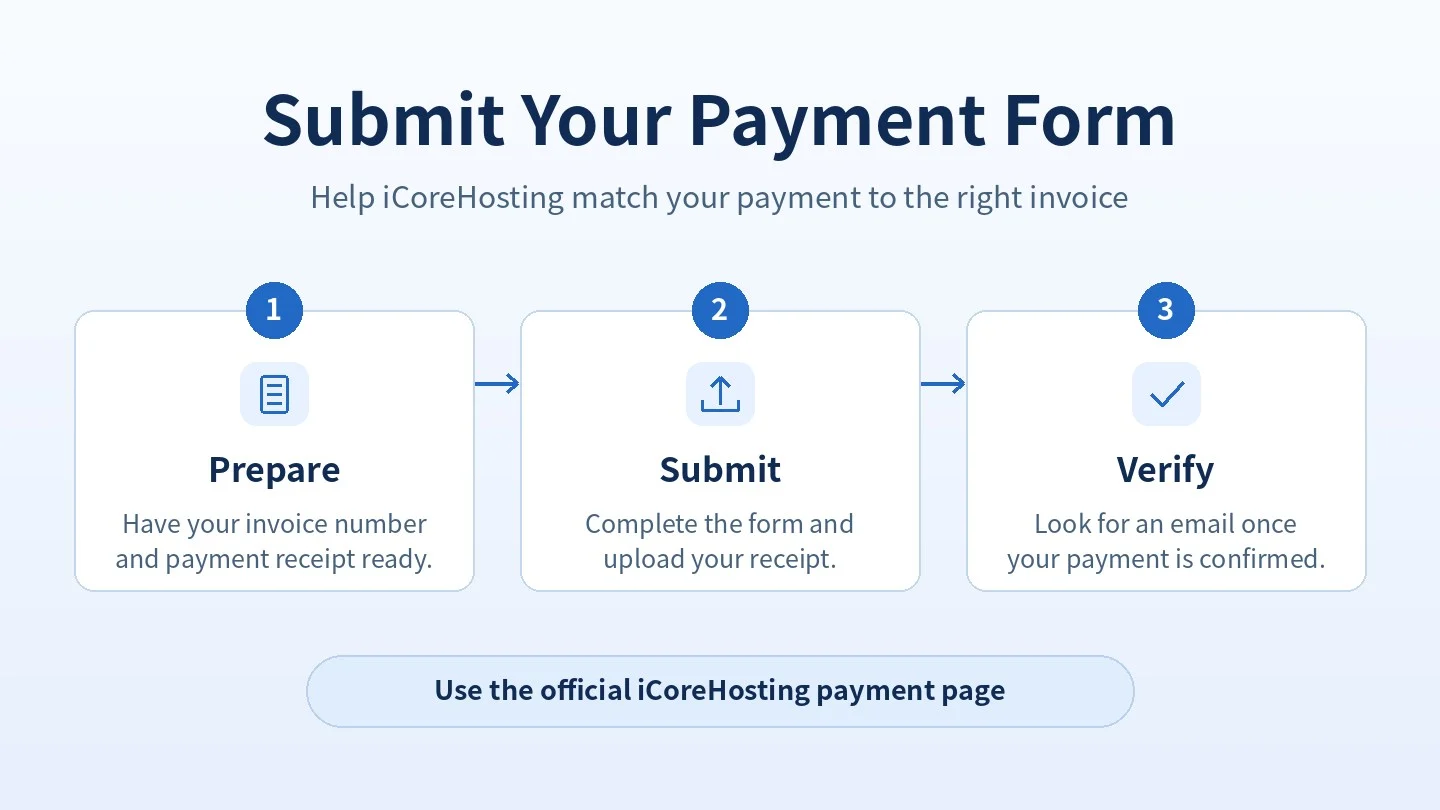
After paying your invoice, submit the Payment Notification Form with your receipt. iCoreHosting uses the information you provide to match the payment to the correct invoice.
Why the Form Is Required
Your invoice number tells us which invoice to update. Your receipt lets us check the amount, date and transaction reference. If we cannot match the payment, service activation or renewal may be delayed.
Step 1: Prepare Your Invoice and Receipt
Pay using the amount and payment instructions on your invoice. Keep your invoice number and download the transaction receipt or take a clear screenshot showing the payment date, amount and transaction reference.
Step 2: Complete and Submit the Form
- Open the official iCoreHosting payment page and scroll to Payment Notification Form.
- Enter your full name, email address, domain, invoice number, amount paid in RM and payment date.
- Upload your receipt in Proof of Payment. You can add a transaction reference or other details in Remark if helpful.
- Check the invoice number and amount, then click Submit.
Step 3: Wait for Payment Verification
Payment verification takes place during office hours, Monday to Friday. Submissions received outside office hours, on weekends or on Malaysian public holidays are reviewed on the next working day. Look for a confirmation email after your payment is verified.
Already Paid but Forgot to Submit the Form?
Use the receipt from your original payment to submit the form as soon as possible. You can report a payment you have already made without paying again.