
Why iCoreHosting Verifies Sensitive Requests
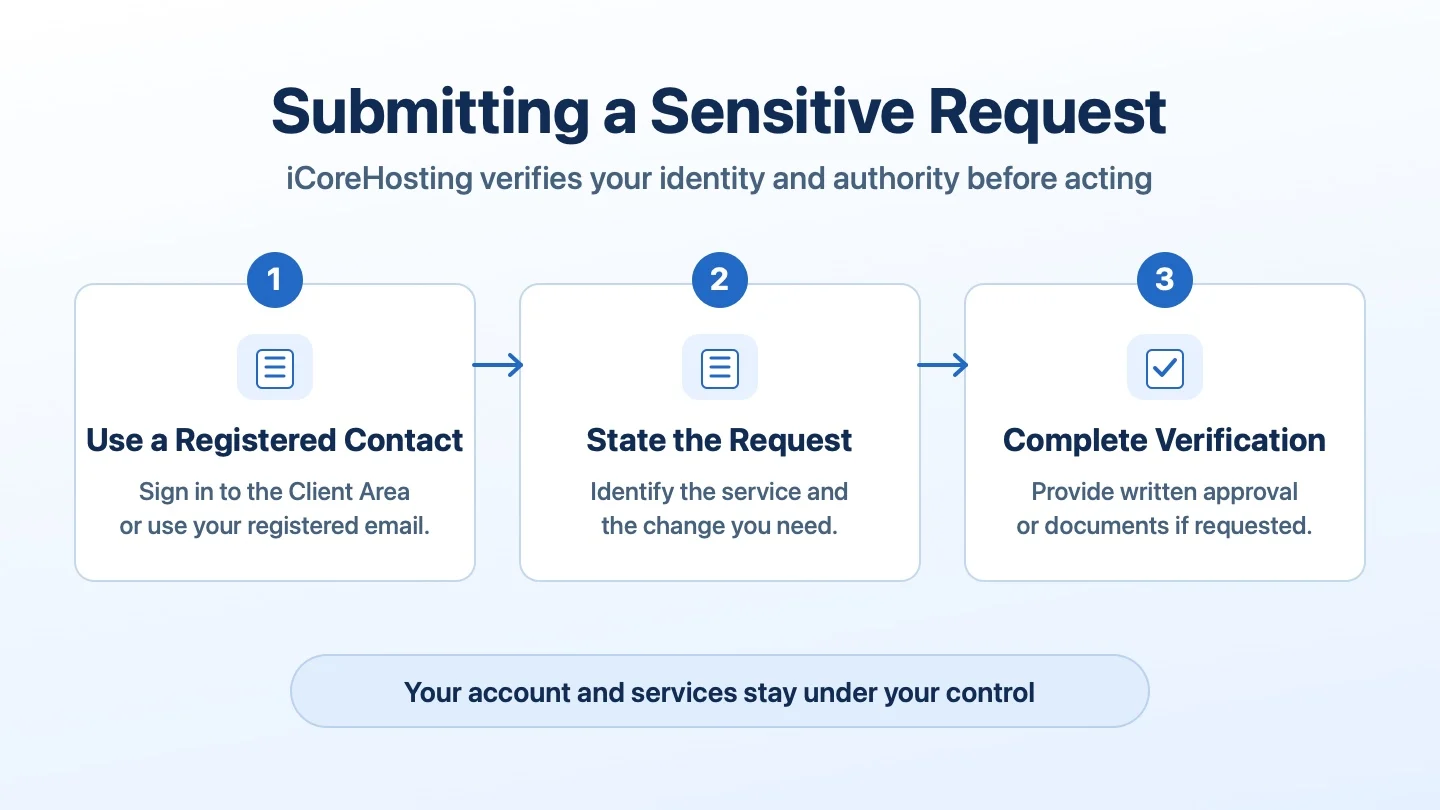
iCoreHosting verifies both your identity and your authority before acting on a sensitive request. If we cannot verify that you are the account owner or authorised to act for the account, we ask the registered account owner or an authorised representative to submit the request.
Which Requests Need Verification?
- Password resets, requests for server access and changes to account contacts or permissions.
- DNS changes, service modifications or cancellations, and requests involving domain ownership.
- Requests for personal data, private logs, billing records or financial adjustments.
Why a Request May Be Put on Hold
We may need more information if the email address or phone number does not match our records, the requester is missing from the account contact list, their permissions do not cover the action, or written approval or supporting documents are missing. A company email domain, job title, screenshot of approval or message from a familiar WhatsApp number may still require verification.
Step 1: Use Your Registered Account or Email
Open a ticket in the iCoreHosting Client Area or email support@icore.com.my from your registered email address. If you are helping the account owner, ask them to submit the request or arrange formal authorisation. Use WhatsApp for general enquiries and keep the approval in the official support record.
Step 2: Describe the Action and the Affected Service
State exactly what you want changed or released. Include the affected domain, service ID, invoice number or server IP as applicable. Give your name and role. Use the original ticket when supplying any additional details.
Step 3: Complete Verification
Provide written approval or company documents if support requests them. We assess the request after verification. If a staff member has left or the registered contact is unavailable, contact iCoreHosting Support for instructions to verify authority and update the contact records.
Request Email Template
Send this from the registered email address or paste it into your support ticket.
Subject: Sensitive Request for [Account or Company Name]

Dear iCoreHosting Support,

Please review the following request for our account.

Affected domain or service ID:
Requested action:
Name and position:
Registered email address:
Contact number:

Please let us know if further verification is required.

Thank you.
Company Authorisation Letter Template
If requested, place this on your company letterhead and have an authorised representative sign it.
[Company Letterhead]
Date:

To: iCoreHosting Support
Subject: Authorisation for Sensitive Request

We authorise the following request for our iCoreHosting account, subject to verification.

Company name:
Affected domain or service ID:
Requested action:
Authorised representative’s name and position:
Signature:
Company stamp, if applicable: