
How to Update Your Account to Company Details and Add a Secondary Contact
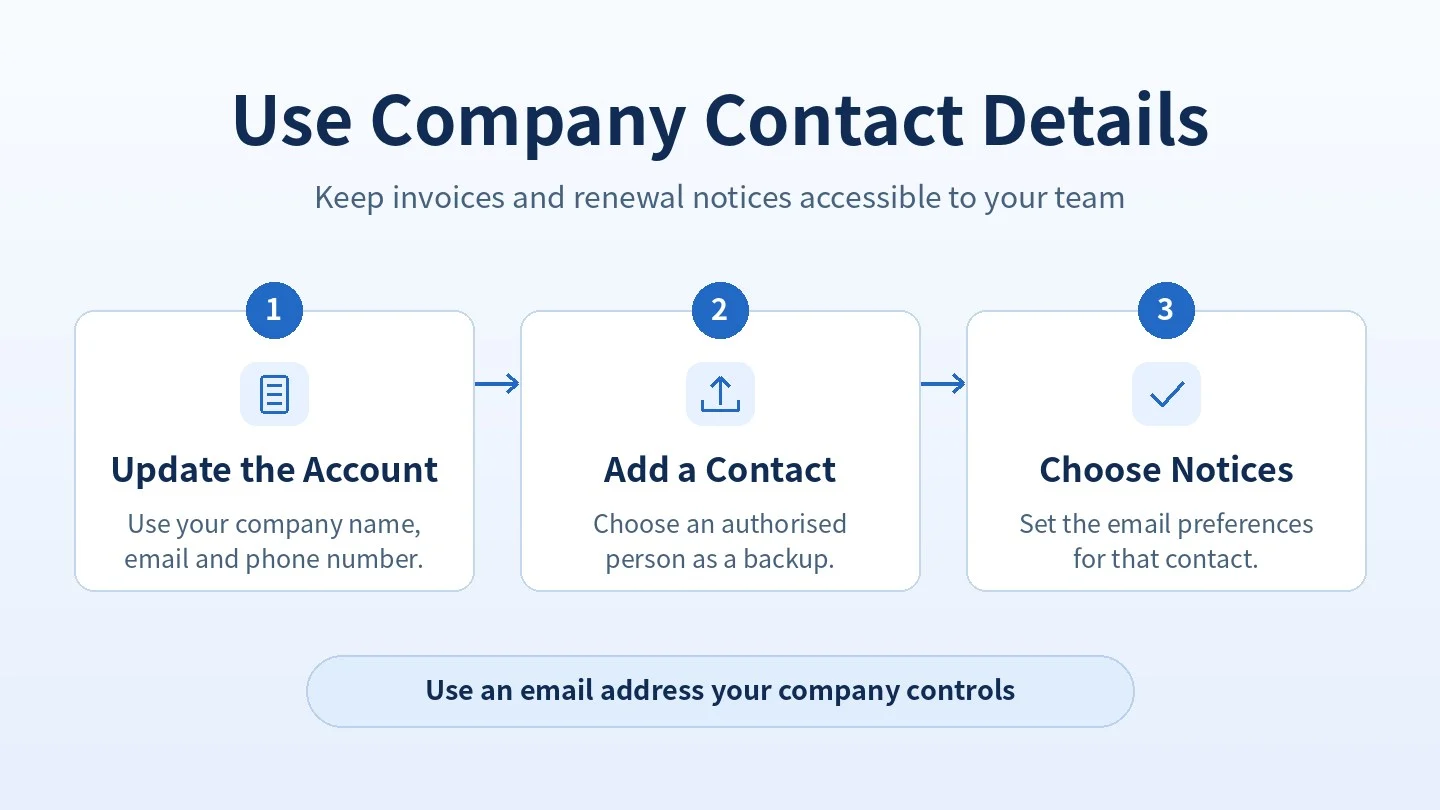
Use contact details your company controls for its iCoreHosting account. A shared finance or billing inbox helps your team keep receiving invoices, renewal reminders and service notices when staff change roles or leave.
Before You Begin
- Have your registered company name, company email address, phone number and billing address ready.
- Choose a person authorised to receive notices on behalf of the company. Have their name and email address ready.
Step 1: Update the Main Account
- Sign in to the iCoreHosting Client Area.
- Open Profile and select Account Details.
- Update the company name, email address, phone number and relevant billing details. Use an address the company controls, such as
finance@example.comorbilling@example.com. - Save your changes. Confirm that the company inbox is accessible to the authorised team.
Step 2: Add a Secondary Contact
- Open Profile, then Contact.
- Select Add Contact and enter the authorised person’s details.
- Under Email Preferences, select the notice categories they need. For example, choose invoice notices for a finance contact.
- Save the contact and check the email address and preferences.
A contact receives the notifications you select. If the person also needs to sign in and manage the account, the account owner can grant user access separately through User Management.
Supporting Company Records
Keep the account details aligned with company records. If iCoreHosting asks for proof of company identity or authority, have the relevant SSM records available. For a request that requires formal verification, see How to Change the Billing Contact at iCoreHosting.